
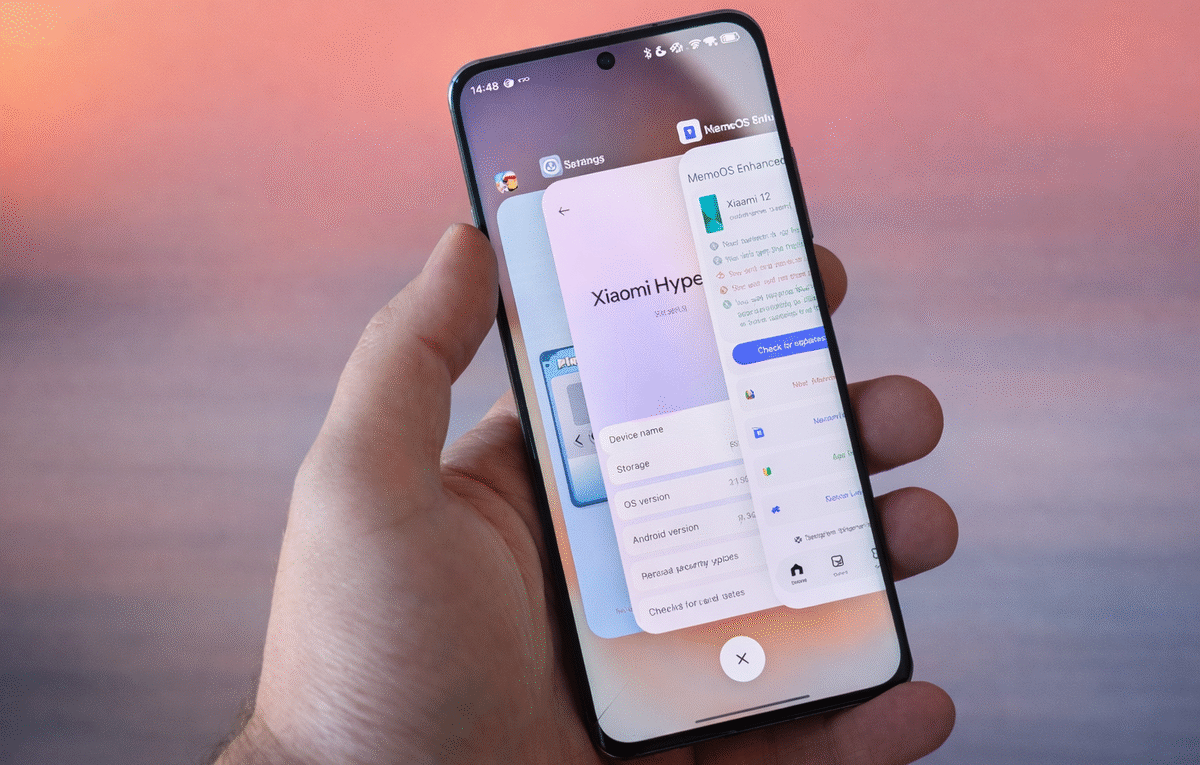
Poco Launcher Update Brings iOS-Style Recents to HyperOS 3
The Poco Launcher just received an update that thousands of users have been waiting for months. Now you can enable iOS-style recent apps on devices running HyperOS 3 and even HyperOS 2.2. This feature was tested and confirmed working on Poco X7 and Poco X6 Pro, proving that the functionality is stable and ready for everyday use.
If you own a Xiaomi or Poco smartphone and always wanted that iPhone visual experience, this is your moment. The update brings intelligent app stacking, smooth animations, and a modern interface that completely transforms how you navigate your system. You don’t need technical expertise or expensive tools. Everything can be done directly from your phone in less than 10 minutes.
This article will show you exactly how to activate this feature step by step. You’ll learn which devices are compatible, understand the technical details, and discover why this update matters for Android customization. By the end, you’ll have a premium interface without losing any Android functionality.
What Makes This Poco Launcher Update Different
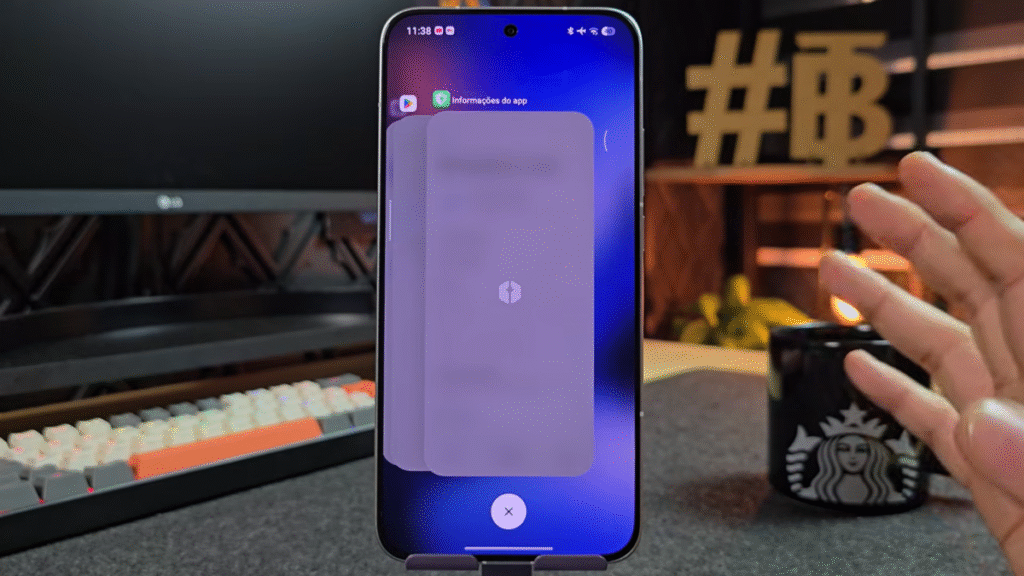
The new Poco Launcher version represents a major shift in how Xiaomi approaches interface customization. Unlike previous versions that had restrictions, this new build finally unlocked native features that were hidden in the system code. The main highlight is the stacked recents system, which organizes open apps vertically, exactly like iOS does.
This change isn’t just cosmetic. It improves productivity by making navigation between apps easier and reduces the time needed to locate a specific window. The functionality was present in the code since HyperOS 2.0, but only now it was officially released through specific ADB commands. Users report that the experience became more fluid, with smooth transitions and immediate touch response.
The vertical stacking allows you to see more apps at once on your screen. Instead of horizontal cards that take up space, you get compact previews that show content from multiple apps simultaneously. This makes switching between work apps, social media, and entertainment much faster. You spend less time scrolling and more time actually using your phone.
HyperOS 2.2 and HyperOS 3 Full Compatibility
One of the most important aspects of this update is backward compatibility. Devices running HyperOS 2.2 based on Android 15 can enable iOS-style recents without any problems. This means even if you haven’t received HyperOS 3 yet, you can still enjoy the new feature.
The Poco X6 Pro, for example, is operating on build 2.0.9 with Android 15 and the function was activated successfully. The Poco X7, which runs HyperOS 3 build 0.9.0 with Android 16, also showed perfect functionality. Xiaomi seems to have developed this update thinking about reaching the largest possible number of users, regardless of system version.
This backward compatibility is crucial because it shows Xiaomi’s commitment to older devices. Many manufacturers abandon previous generation phones when new software comes out. But here, even phones from 2023 running Android 15 can access cutting-edge features designed for 2026 devices. It’s a win for consumers who don’t upgrade phones every year.
The compatibility extends beyond just version numbers. Both global and regional ROMs support this feature. Whether you’re using a phone purchased in Europe, India, or the Americas, the commands work the same way. This universal approach eliminates the frustration of region-locked features that plague many Android customizations.
Tested Devices Confirmed by Global Community
Official tests were performed on two main models: Poco X7 and Poco X6 Pro. The Poco X7 operates with HyperOS 3 in the standard global region, with February 2026 security patch. The Poco X6 Pro uses HyperOS 2.2 MI global region, also with updated patch.
Both devices showed total stability after applying the necessary commands. No crashes, unexpected reboots, or loss of native functionalities were registered. The user community has already started reporting success on other models, including devices from the Redmi and traditional Xiaomi lines.
Poco X7 Running HyperOS 3 Android 16
The Poco X7 was the first device to receive extensive testing of the new Poco Launcher. Running HyperOS 3 build 0.9.0, the smartphone demonstrated exceptional performance. The recents animations became even smoother thanks to Android 16, which optimizes graphic rendering.
Battery consumption showed no significant changes, maintaining the device’s standard autonomy. Users who applied the modification report that the visual experience improved considerably. The vertical app stacking allows viewing more windows simultaneously, making multitasking effortless.
The Poco X7’s 120Hz display takes full advantage of the new animations. Every swipe, every transition feels premium. The phone responds instantly to gestures, creating an experience that rivals flagship devices costing twice as much. This proves that good software optimization matters more than raw hardware specs.
Poco X6 Pro Running HyperOS 2.2 Android 15
The Poco X6 Pro proved that the functionality isn’t exclusive to HyperOS 3. Operating with HyperOS 2.2 based on Android 15, the device activated iOS-style recents without complications. This opens possibilities for thousands of users still waiting for the update to the most recent system version.
Build 2.0.209.0 MI global region showed full compatibility with the necessary ADB commands. The activation process took less than 5 minutes, without need for root or bootloader unlock. After application, the launcher maintained all previous custom settings, without resetting user preferences.
This is important for people who spent time customizing their home screens. Icon packs, widgets, gesture controls—everything stays exactly as you configured it. The iOS-style recents simply add to your existing setup instead of replacing it. You get the best of both worlds without losing anything.
Complete Tutorial to Enable iOS-Style Recents
Activating iOS-style recents on Poco Launcher is a simple process that anyone can perform. You don’t need advanced knowledge in programming or system modification. Just follow each step carefully and have the correct apps installed on your smartphone.
The procedure uses Shizuku Brevent, an app that allows executing ADB commands without needing a computer. This makes the process much more accessible, eliminating dependency on USB cables and external software. The entire tutorial can be completed in approximately 10 minutes, depending on your familiarity with Android settings.
Requirements Needed Before Starting
Before starting, make sure your device meets these requirements:
- Operating system: HyperOS 2.2 or higher (based on Android 15 or 16)
- Launcher: Poco Launcher updated to the most recent version
- Required app: Shizuku installed from Google Play Store
- Configuration: Developer options enabled on smartphone
- Connection: Stable Wi-Fi for wireless debugging pairing
It’s important to download the correct version of Poco Launcher through official distribution channels. Old versions or third-party modified ones may not work properly with ADB commands.
Step 1 – Enable Developer Options
To begin, you need to enable developer options on your smartphone. Open Settings and navigate to About phone. Locate the option MIUI Version or HyperOS Version. Tap 7 consecutive times on this option until the message “You are now a developer” appears.
Go back to the main settings menu and enter Additional settings. Now you’ll see the Developer options available in the menu. Enter this section to configure the necessary permissions.
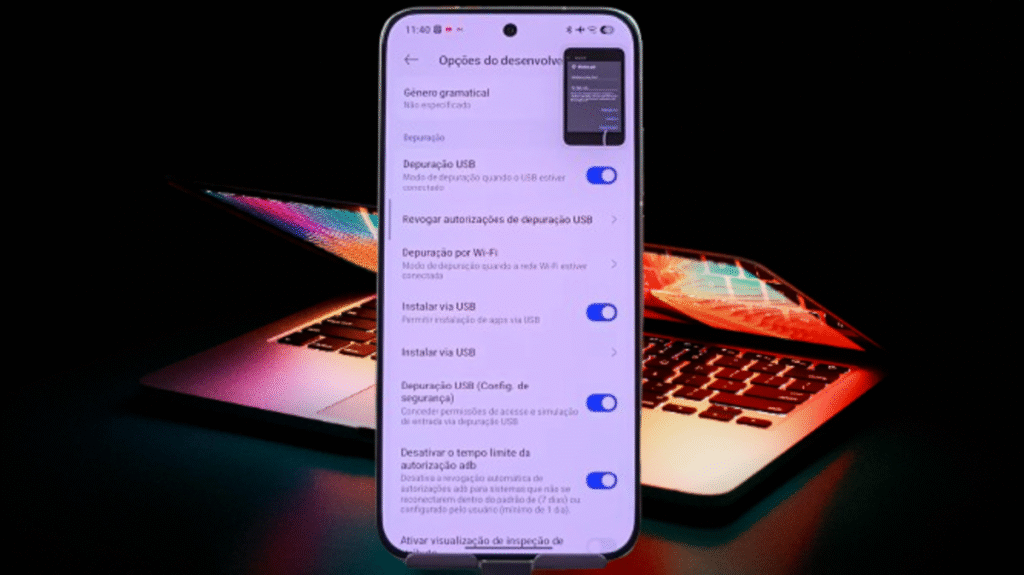
Step 2 – Configure USB Debugging
Inside Developer options, you need to activate three specific settings. First, enable USB debugging. This allows apps to access advanced system functions. Next, enable Install via USB. This option allows app installation through commands. Lastly, activate USB debugging (Security settings). This guarantees complete permissions.
These three options are fundamental for Shizuku to work correctly. Without them, the app won’t be able to execute the necessary commands to activate iOS recents. Keep these settings enabled throughout the entire process.
Step 3 – Install and Configure Shizuku Brevent
Open Google Play Store on your smartphone. In the search bar, type Shizuku Brevent and locate the official app. Install the app and wait for download completion. After installed, open Shizuku for the first time. You’ll see a welcome screen with basic instructions.
Swipe to the side until you find the Start button. Tap Start and grant the permissions requested by the app. Shizuku will ask for access to files and settings. Authorize all requests.
Step 4 – Enable Wireless Debugging
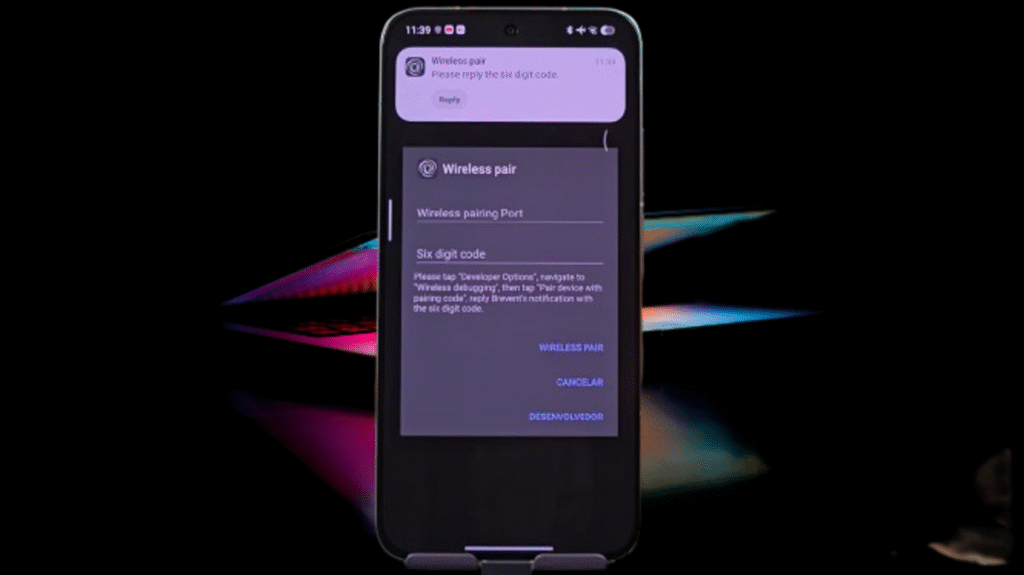
This is one of the most important steps in the tutorial. Go back to Developer options in system settings. Scroll the screen until you find Wireless debugging. Enable this option by tapping the switch beside it.
After enabling, tap Pair device with pairing code. The system will generate a 6-digit code on screen. Attention: This code is temporary and changes with each attempt. Write it down or keep the screen open.
Step 5 – Pair Device in Shizuku Brevent
With the pairing code in hand, open the Shizuku Brevent app. On the home screen, tap the menu icon in the upper left corner. Select the option Pair wireless device. Paste or type the 6-digit code you noted earlier.
Tap Pair and wait a few seconds. Shizuku will establish connection with the system and display a success confirmation. If pairing fails, go back to settings and generate a new code.
Step 6 – Execute ADB Command
Now comes the technical part, but don’t worry, it’s simpler than it seems. You’ll need to execute a specific ADB command through Shizuku. The command is:
settings put global task_stack_view_layout_style 2
To make it easier, copy this command from a notepad or text app. Open Shizuku Brevent and tap the terminal icon at the top of the screen. Paste the command exactly as written, without extra spaces or modifications. Tap Execute or OK to apply the command.
Step 7 – Activate iOS-Style Recents
After executing the command successfully, exit Shizuku. Make a pinch gesture on the home screen (bring two fingers together like zooming). This will open Poco Launcher settings. Tap More in the menu that appears.
Inside the options, locate and enter Recents. You’ll see the option Sort items in recents. Enable this option and you’re done! iOS-style recents are now working on your Android phone.
Advantages of iOS-Style Recents on Android
The implementation of stacked recents brings practical benefits that go beyond aesthetics. The vertical organization allows viewing more apps at once, optimizing screen space. Smooth animations improve the perception of system speed, making navigation more pleasant.
Visual consistency with other interface elements creates a more cohesive and professional experience. Users report that the change especially facilitates multitasking between communication and productivity apps. The time needed to locate a specific app decreases considerably with the new layout.
Intelligent App Stacking
Vertical stacking groups similar apps automatically. For example, multiple browser tabs appear stacked, saving visual space. Messaging apps like WhatsApp and Telegram can be grouped for quick access. The system learns from your usage patterns and prioritizes most-used apps.
This intelligent organization reduces visual pollution and makes the recents screen cleaner. You can expand or collapse groups with a simple tap, fully controlling the view. It’s like having folders in your recents menu, but automatic and smarter.
Fluid and Responsive Animations
Transitions between apps gained smoothness comparable to recent iPhones. The effect of sliding between windows was optimized for 120Hz on compatible devices. Touch response time decreased, providing immediate feedback on actions.
Opening and closing animations became more natural and less robotic. This improvement in fluidity contributes to an overall feeling of greater system performance. Even on mid-range smartphones, the difference in user experience is noticeable.
The animations respect your gestures perfectly. When you swipe up to see recents, the cards flow smoothly onto screen. When you swipe an app away to close it, the animation feels natural and satisfying. These small details add up to create a premium experience that makes you enjoy using your phone more.
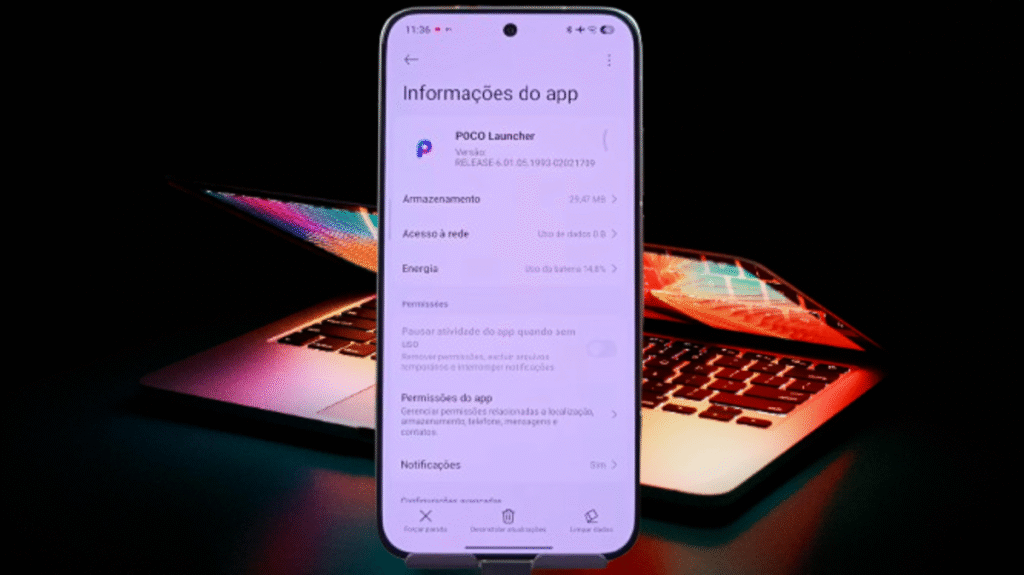
LINK DOWNLOAD: POCO-Launcher-RELEASE-6.01.05.1993-02021709
Compatibility with Other Xiaomi Devices
Although official tests focused on Poco X7 and Poco X6 Pro, compatibility extends to other models. Devices from the Redmi line with Android 15 or higher can execute the procedure. Traditional Xiaomi smartphones running HyperOS 2.2 also show confirmed functionality.
The only real requirement is being on a system version compatible with the ADB commands used. Users around the world have already tested on various models with positive results. Check the HyperOS 3 update tracker to see if your device already received a compatible version.
If you want to learn more about forcing HyperOS 3 on unsupported devices, check out our complete guide on how to force HyperOS 3 on any Xiaomi device. That article explains advanced methods for installing newer system versions on older phones, expanding your customization possibilities even further.
List of Devices Tested by Community
The enthusiast community has already validated functionality on multiple devices:
- Poco X7 (HyperOS 3, Android 16) – Perfect functionality
- Poco X6 Pro (HyperOS 2.2, Android 15) – Confirmed stable
- Poco X6 5G (HyperOS 2.2, Android 15) – Positive initial reports
- Poco F6 (HyperOS 2.0, Android 14) – Requires update to function
- Poco F7 (HyperOS 3, Android 16) – Tested in India region
- Poco M6 Pro (HyperOS 2.2, Android 15) – Global region tested
If you own another model, try the procedure and share results in the comments. The community grows stronger when everyone contributes their findings.
Advanced Customization Beyond iOS Recents
The iOS-style recents are just the beginning of what HyperOS 3 offers for customization enthusiasts. Xiaomi has been gradually unlocking features that were previously hidden or exclusive to certain regions. One of the most exciting additions is the Dynamic Island implementation, which brings iPhone 14 Pro functionality to Android devices.
For those interested in taking customization even further, our article on HyperOS 3.1 Dynamic Island and advanced design features explores how to enable this innovative interface element. The Dynamic Island works seamlessly with the new recents layout, creating a cohesive premium experience across your entire system.
The combination of iOS-style recents and Dynamic Island transforms mid-range Xiaomi phones into devices that feel like flagship competitors. You get the visual polish of expensive phones without the expensive price tag. This democratization of premium features is what makes Android customization so powerful.
Tracking HyperOS 3 Global Rollout
Knowing which devices receive HyperOS 3 updates first helps you plan your upgrade strategy. Xiaomi typically rolls out major updates in waves, starting with flagship devices and gradually expanding to mid-range and budget phones. The rollout schedule varies by region, with some countries receiving builds weeks before others.
Our comprehensive HyperOS 3 global update tracker provides real-time information about which devices in which regions have received the latest builds. This resource gets updated daily as new ROMs release, giving you the most current information available.
Understanding the rollout pattern helps you decide whether to wait for official updates or use manual installation methods. Some users prefer waiting for OTA updates to ensure maximum stability, while others want features immediately and don’t mind manual flashing. Both approaches have merit depending on your technical comfort level and patience.
Frequently Asked Questions About Poco Launcher
1. Do I need to root my phone to enable iOS-style recents? No, the procedure doesn’t require root or bootloader unlock. Everything works on stock firmware.
2. Can I uninstall Shizuku after applying the command? Yes, after enabling the feature, Shizuku Brevent can be removed without problems.
3. Does the update work on any HyperOS version? Only on HyperOS 2.2 or higher with Android 15+. Older versions are incompatible.
4. Will I lose the configuration if I restart my phone? No, the modification is permanent and survives restarts and system updates.
5. Can this modification cause system problems? No, you’re only activating a native Poco Launcher function that’s already in the code.
6. Does it work on other launchers besides Poco Launcher? No, the functionality is exclusive to official Poco Launcher. Third-party launchers won’t work.
7. Do I need to download Poco Launcher from somewhere specific? Download the updated version from official channels or trusted communities like TECnoVAssolution.
8. Does the procedure work on phones with MIUI instead of HyperOS? No, HyperOS 2.2 or higher is required. MIUI doesn’t have this functionality.
Complete Compatibility Table
| Dispositivo | Sistema | Compilação | Android | Status | Região |
|---|---|---|---|---|---|
| Poco X7 | HyperOS 3 | 0.9.0 | Android 16 | ✅ Confirmado | Global |
| Poco X6 Pro | HyperOS 2.2 | 2.0.209.0 | Android 15 | ✅ Confirmado | MI Global |
| Poco X6 5G | HyperOS 2.2 | 2.0.207.0 | Android 15 | ✅ Testado | Europa |
| Poco F7 | HyperOS 3 | 0.3.0 | Android 16 | ✅ Testado | Índia |
| Poco F6 | HyperOS 3 | 0.4.0 | Android 15 | ✅ Testado | Global |
Main Benefits of This Update
- Modern interface inspired by iOS without losing Android functionalities
- Optimized multitasking with intelligent app stacking
- 120Hz animations taking advantage of high refresh rate displays
- Backward compatibility working on HyperOS 2.2 and Android 15
- Simple installation without need for computer or cables
- Reversible modification – can deactivate whenever you want
- Proven stability in tests with Poco X7 and X6 Pro
- No root required – preserves warranty and security
- Free update available for all compatible users
- Community support with thousands of users testing
- Works across multiple regions without restrictions
- Maintains all existing launcher customizations
- Improves productivity with faster app switching
- Reduces visual clutter on recents screen
- Premium experience on mid-range devices
Conclusion
The new Poco Launcher with iOS-style recents support represents a significant advance in Xiaomi and Poco device customization. The ability to activate this functionality on both HyperOS 3 and HyperOS 2.2 democratizes access to the feature across a wide range of devices.
The installation process, despite involving ADB commands, was simplified thanks to the Shizuku Brevent app. Anyone can follow the tutorial and transform the appearance of recents on their smartphone. The tests performed on Poco X7 and Poco X6 Pro confirmed total modification stability.
If you want a differentiated visual experience without giving up Android functionalities, this is the perfect opportunity. The combination of iOS aesthetics with Android flexibility creates something unique. You get the best of both ecosystems without compromising on either.
For those looking to maximize their HyperOS 3 experience, exploring additional customization options makes sense. The system has dozens of hidden features waiting to be unlocked. Each tweak builds on the previous ones, creating a truly personalized device that reflects your preferences and workflow.
Keep following updates about HyperOS and Xiaomi news on TECnoVas innovate. We publish daily content about ROM releases, feature guides, and device comparisons. The Android customization community thrives on shared knowledge, and your contributions help everyone learn faster.

Valberth Vas, the expert behind TecnoVas Innovate, is the author of the company’s reviews and guides. His vast experience in the world of technology, with a particular focus on Xiaomi’s innovations, allows him to offer in-depth insights and clear guidance on the current technological landscape.